

How To Install & Use OW Sync - 123Insight Connector
Here’s everything you need to know to install and use OW Sync - 123Insight Connector.
1. Before You Start — What You Need
Section titled “1. Before You Start — What You Need”123Insight runs on your own SQL Server, so OW Sync reaches it through the OW Sync Bridge: a small Windows service you install inside your network. The Bridge only makes outbound HTTPS connections to OW Sync, so there are no inbound firewall rules to open and your database is never exposed to the internet. Before you start, check you have:
-
A Windows Server for the Bridge: Windows Server 2019 or later (x64) that can reach your 123Insight SQL Server. This can be the SQL Server itself. You’ll need to be a local administrator on it to run the setup.
-
Outbound HTTPS from that server to
app.owsync.io(port 443). Nothing needs to reach the server from outside. -
123Insight 2025 Q3 (version 25.3.3.0) with the SDK Toolkit licence active. Syncing into HubSpot only reads your data; the SDK Toolkit is what lets the workflow actions in section 10 create and update records in 123Insight.
-
A way to give the Bridge a SQL login. If your 123Insight database is on the same server and you sign in with Windows authentication, the setup creates the Bridge’s login for you. Otherwise it shows the exact script for your database administrator to run. Either way the login gets read access to the 123Insight tables it syncs and permission to run the SDK procedures — nothing else.
-
An “OW Sync” employee in 123Insight. Ask your 123Insight administrator to add an employee named OW Sync in user administration. Everything OW Sync writes to 123Insight is recorded against this employee, so your audit trail shows exactly which changes came from HubSpot.
ℹ️ Database settings: The 123Insight installer already enables CLR integration and marks the company database as trustworthy, both of which the SDK procedures need. The Bridge checks these during setup and tells you if anything has been changed since.
2. Initial Installation
Section titled “2. Initial Installation”-
Install OW Sync - 123Insight Connector from the official installation flow. On the OW Sync landing page, open the “Search for your ERP…” dropdown and select 123Insight, then click Log In with HubSpot.
-
Select your HubSpot account from the list. We recommend testing on a sandbox or test account before deploying to production.
-
Review the permissions required by the app — these include access to your companies, contacts, deals, orders, invoices, products, line items, lists, and their property schemas, plus workflow actions — then click Connect app to proceed.
3. Account Setup
Section titled “3. Account Setup”After connecting, you’ll be guided through a setup wizard.
-
Select Billing Contact: Choose a portal user who will be the primary billing contact for this account from the dropdown, then click Continue.
-
Company Information: Enter your billing company details including domain, legal company name, street address, city, state/county, postal code, and country. This information will be used for invoicing. Click Continue to proceed.
4. Install the OW Sync Bridge
Section titled “4. Install the OW Sync Bridge”The onboarding wizard walks you through installing the Bridge. Keep OW Sync open in your browser while you do this: you’ll need it for the pairing code.
-
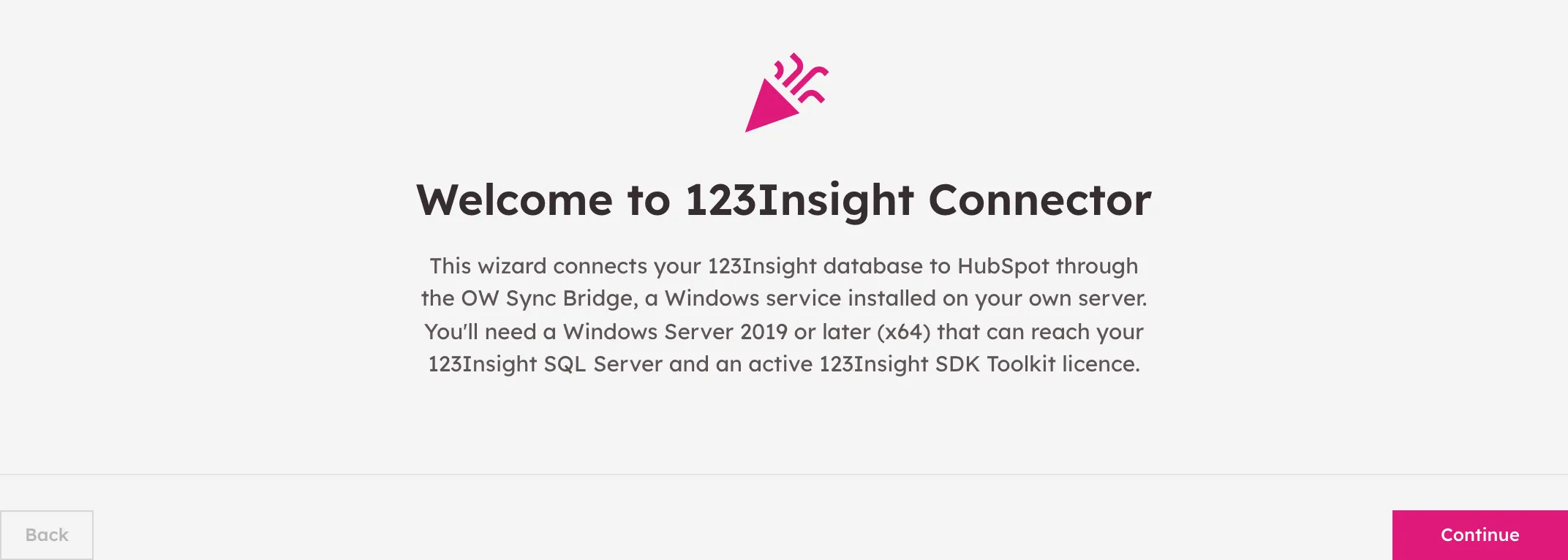
Welcome to 123Insight Connector: The wizard explains that you’ll install the Bridge on a Windows Server in your network. Click Continue.
-
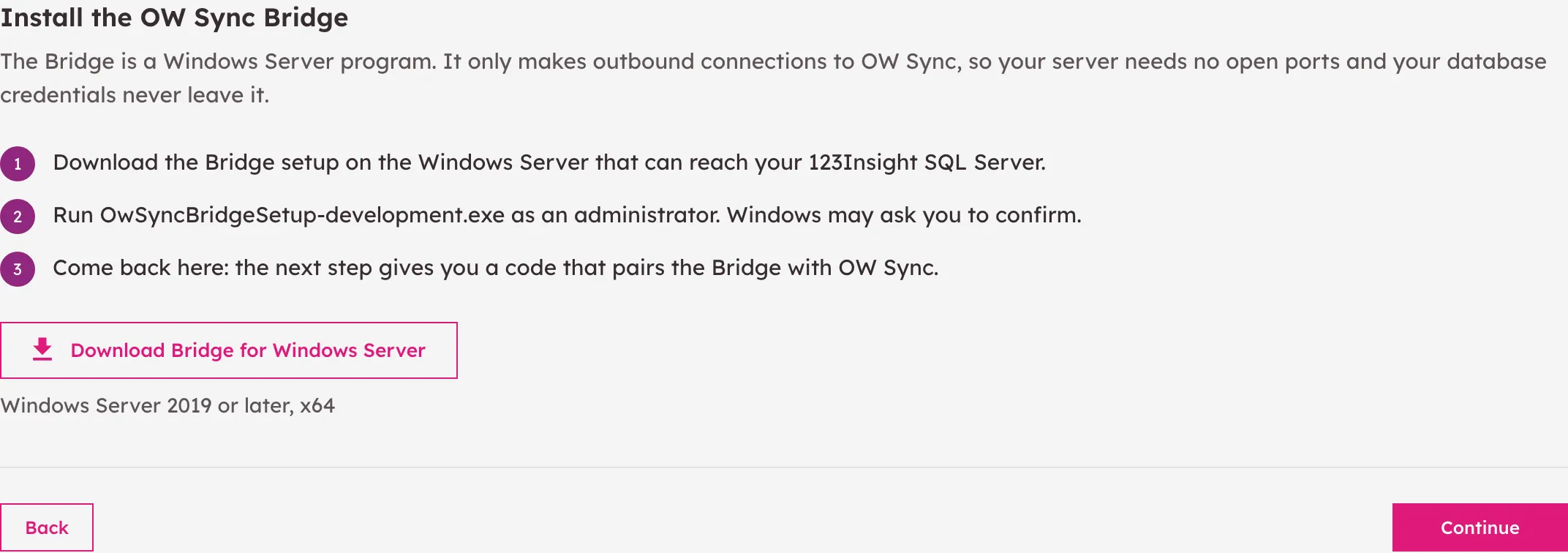
Download Bridge: Download the Bridge setup on the Windows Server that can reach your 123Insight SQL Server, and run it as an administrator. Windows may ask you to confirm.
-
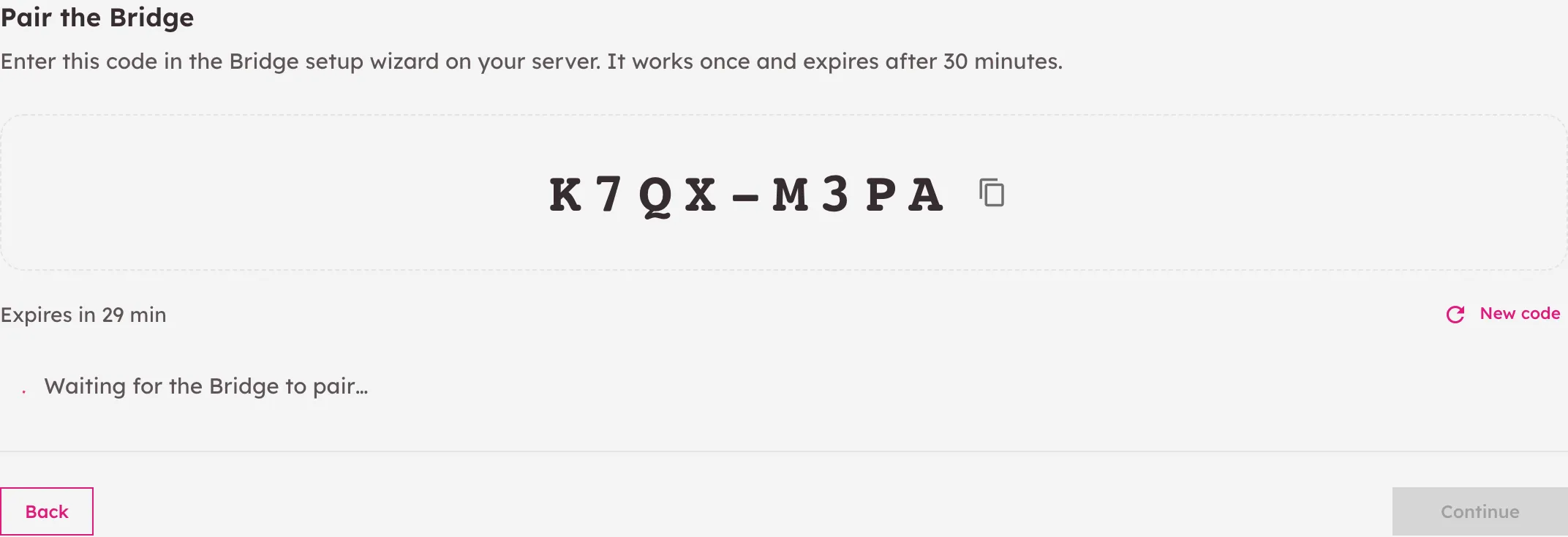
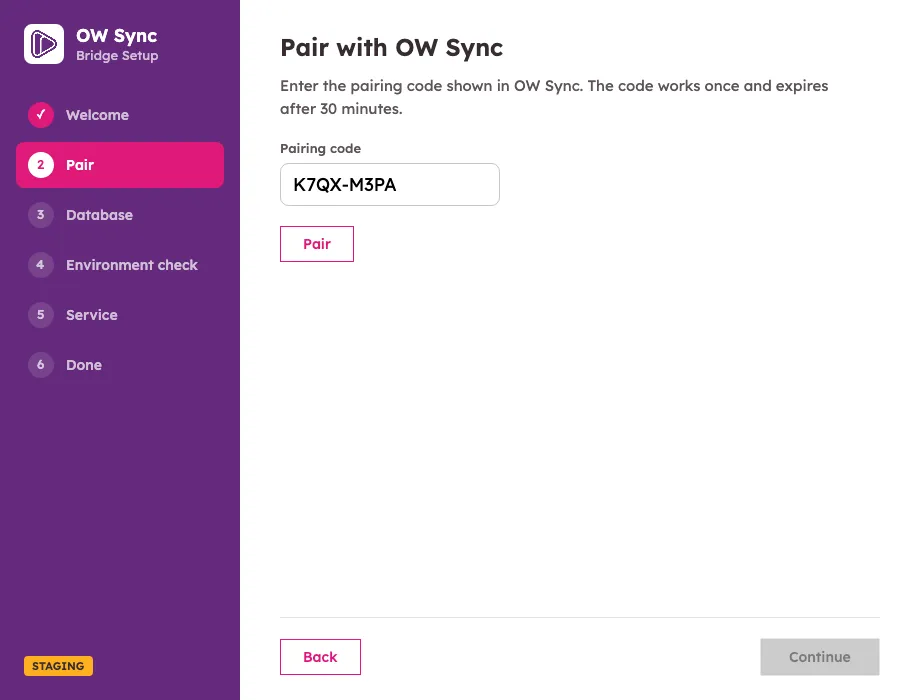
Pair: OW Sync shows a one-time pairing code. It can be used once and expires after a few minutes; if it runs out, get a new one. Leave this page open: it moves on by itself once the Bridge has paired.
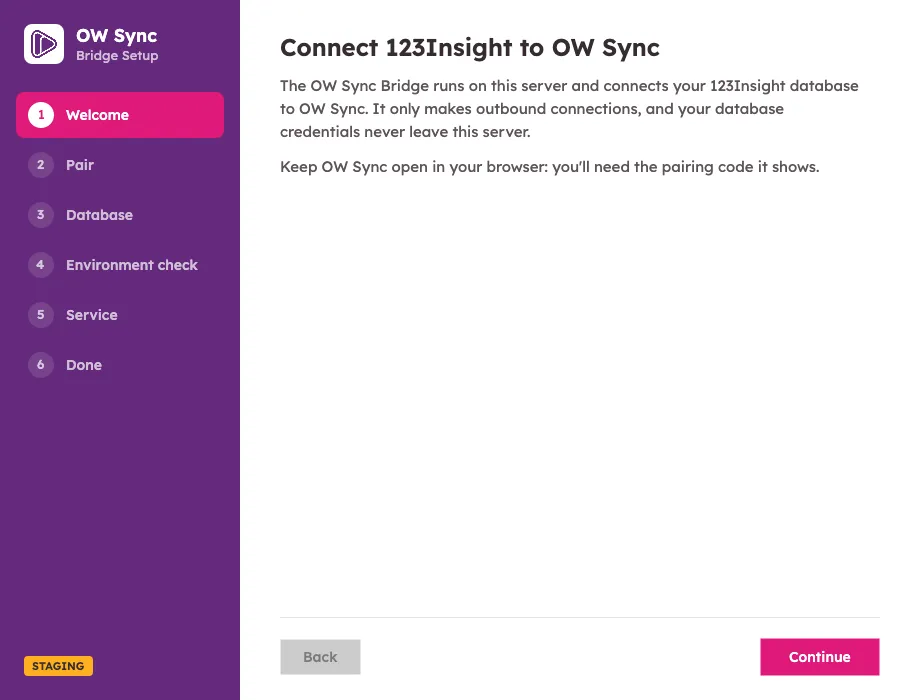
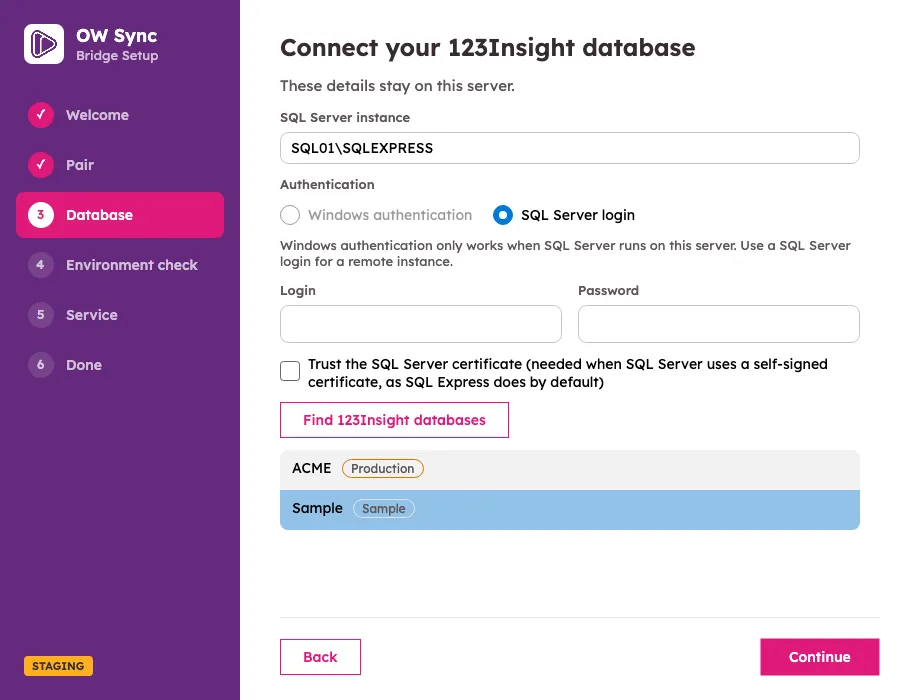
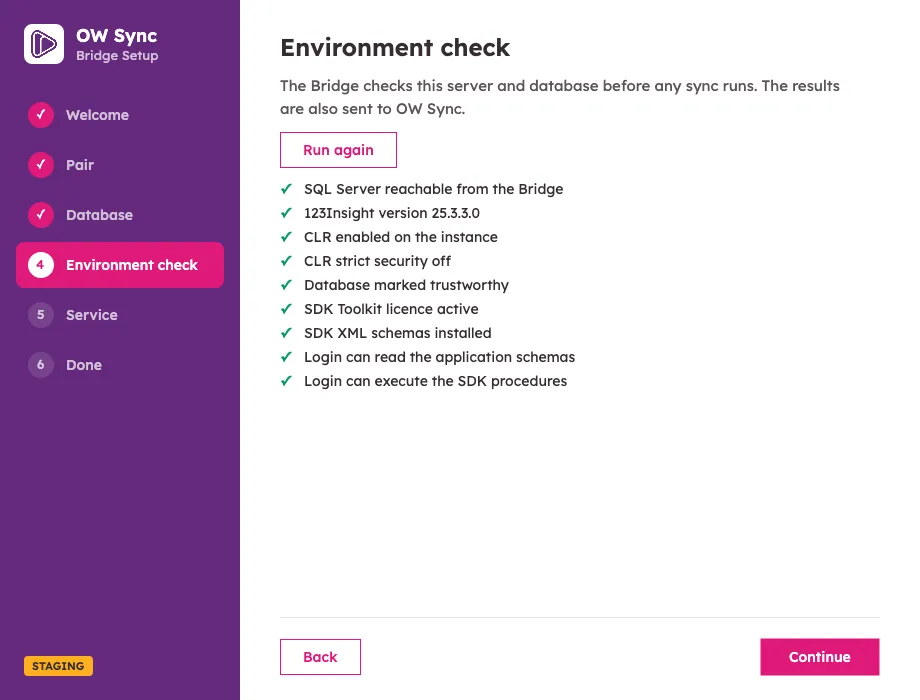
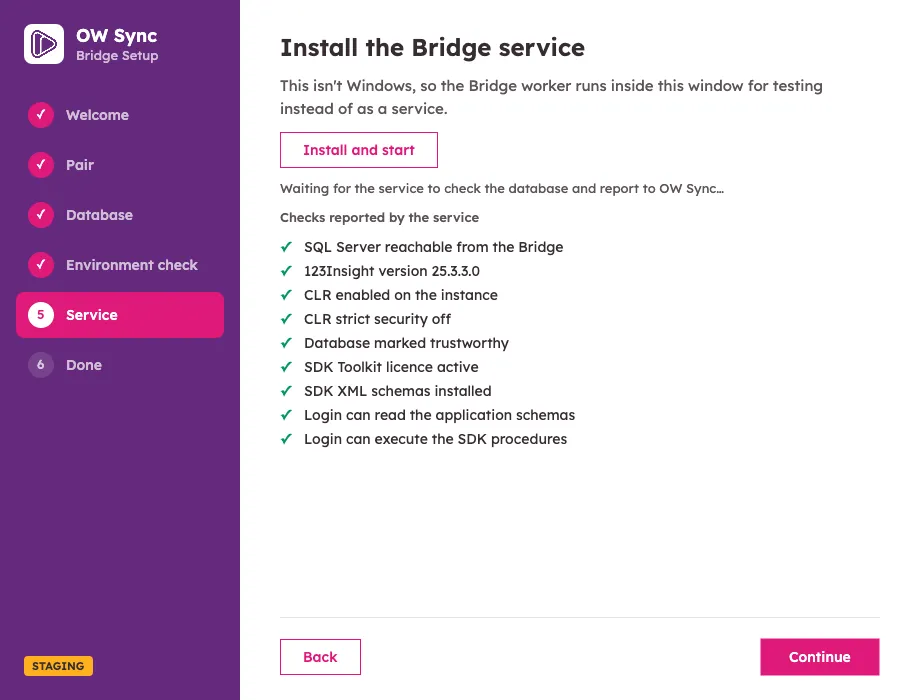
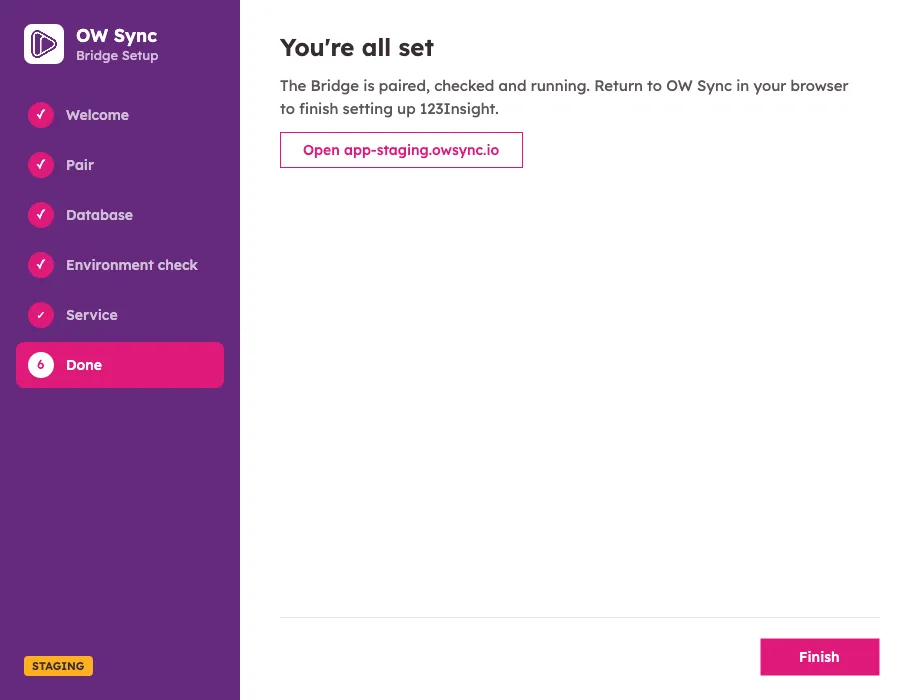
On the Windows Server, the Bridge setup takes you through six short steps:
-
Welcome — what the Bridge does.
-
Pair — enter the pairing code from OW Sync.
-
Database — pick your SQL Server instance (the setup lists the ones it finds), choose Windows authentication or a SQL Server login, then pick the 123Insight company database. Databases are labelled Sample or Production so you can be sure you’ve picked the right one.
-
Environment check — the setup checks the database (see below) and shows the results.
-
Service — the setup installs the Bridge as a Windows service running under its own service account, gives that account its SQL login (or shows the script for your database administrator), starts the service and waits for it to report in.
-
Done — head back to OW Sync in your browser.
-
Environment Check: Back in OW Sync, you’ll see the Bridge’s host name and the results of its environment check, run by the service itself:
- SQL Server reachable from the Bridge
- 123Insight version 25.3.3.0
- CLR enabled on the instance, and CLR strict security off
- Database marked trustworthy
- SDK Toolkit licence active, and the SDK XML schemas installed
- The Bridge’s login can read the application tables and run the SDK procedures
Click Continue once every check passes. The check doesn’t look for the OW Sync employee from section 1: until it exists, workflow actions on a production database stop with a message saying so.
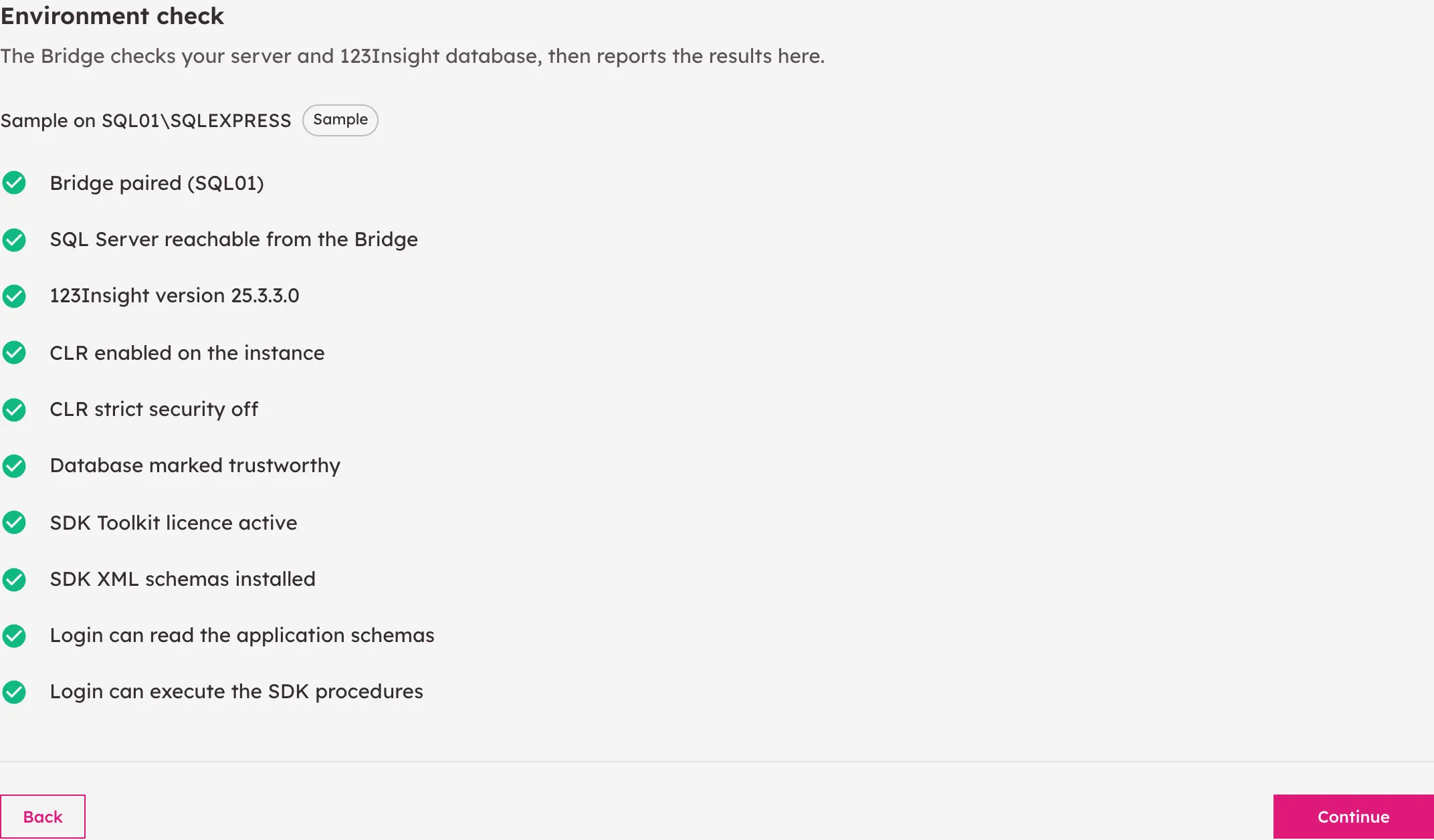
ℹ️ A check failed? Each failed check says what’s wrong. The usual causes are a missing SDK Toolkit licence, a SQL login created without the script’s grants, or a different 123Insight version. Fix it on the server and the Bridge re-runs the check within a few minutes; you can also run it again from the Auth page later.
5. HubSpot Setup — Create Properties
Section titled “5. HubSpot Setup — Create Properties”123Insight data is mapped to the matching native HubSpot objects (companies, contacts, products, deals, orders, invoices, and line items). There’s no target object to choose.
-
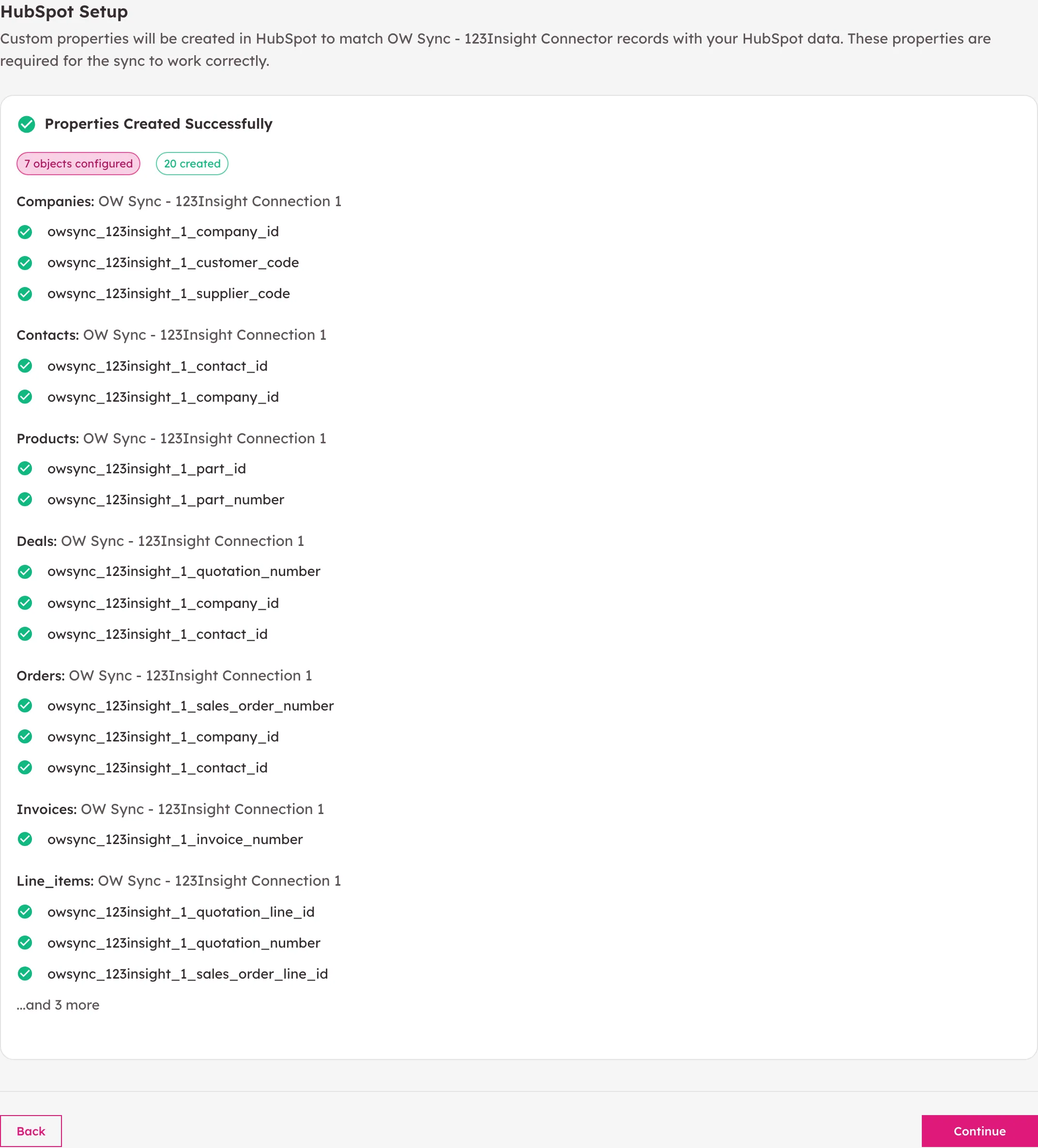
Click Create Properties to proceed. OW Sync creates the sync pairs, field mappings, and associations. The Bridge then reads which columns each sync returns, and your company’s lookup lists — customer statuses, payment terms, currencies, countries, tax codes, nominal codes, and titles — to back the dropdown fields.

-
To keep your HubSpot portal tidy, OW Sync creates only the properties every sync needs at this point: the 123Insight record IDs that link each HubSpot record to 123Insight, the IDs that link records to each other, and a few key fields. Fields that land in HubSpot’s own properties — names, phone numbers, websites, email addresses, job titles, SKUs, prices, amounts — need nothing created. Every other 123Insight field is ready to switch on from the Mapping page whenever you want it (see section 7).
6. Finish Onboarding
Section titled “6. Finish Onboarding”-
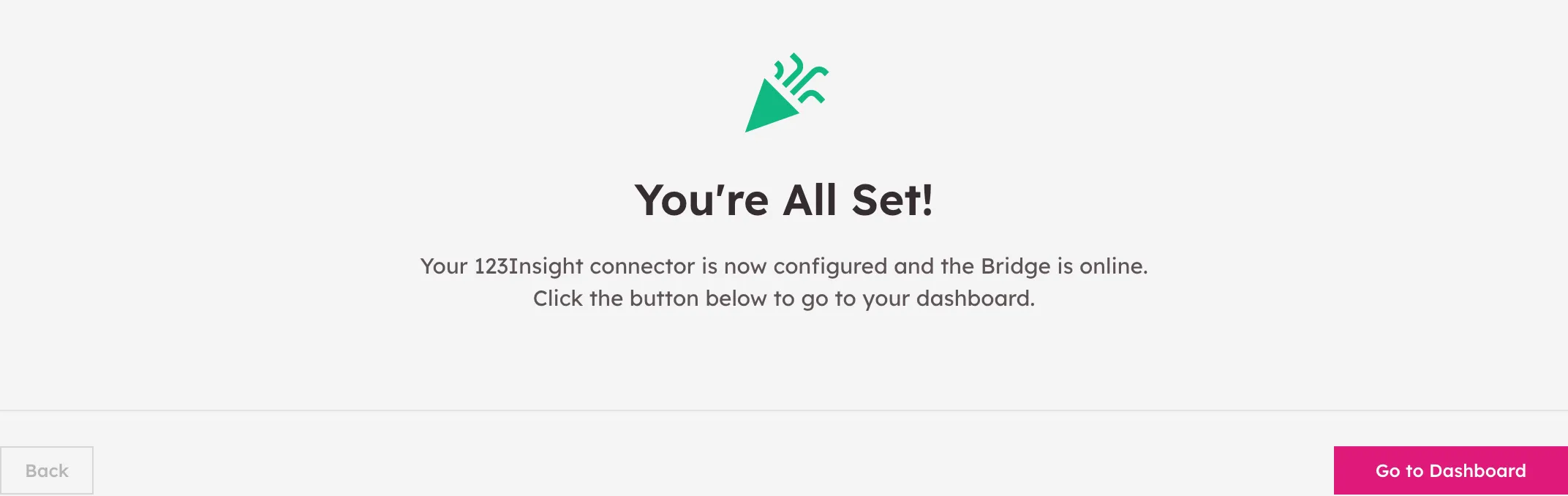
Once properties are created, you’ll see the All set! screen confirming your 123Insight connector is configured and ready to use. Click Go to Dashboard to enter the app.
7. Review Your Sync Configuration
Section titled “7. Review Your Sync Configuration”-
After onboarding, you’ll land on the Mapping page. Its Objects tab shows your pre-configured sync pairs, which bring 123Insight data into the matching native HubSpot objects:
- 123Insight Customers → HubSpot Companies
- 123Insight Suppliers → HubSpot Companies — a company that is both a customer and a supplier in 123Insight stays one HubSpot company
- 123Insight Company Contacts → HubSpot Contacts
- 123Insight Parts → HubSpot Products
- 123Insight Quotations → HubSpot Deals
- 123Insight Sales Orders → HubSpot Orders
- 123Insight Sales Invoices → HubSpot Invoices
- 123Insight Quotation Details / Sales Order Details / Sales Invoice Lines → HubSpot Line Items
-
Use the Activated toggle on each row to turn a sync pair on or off, and the Interval dropdown to set how often it runs (sync frequency depends on your plan). Each row also shows how many records 123Insight holds for that pair, counted by the Bridge once a day. You can review the field mappings for any pair by expanding its row before enabling it.
-
Add the fields you want: Inside an expanded sync pair, fields that already land in HubSpot properties are switched on. Every other 123Insight field is listed with a Create property button: click it and OW Sync creates the HubSpot property — with its dropdown options for list fields — and starts syncing that field. To add several at once, tick the checkbox at the left of each field you want — click one, then hold Shift and click another to tick every field in between, or use the header checkbox for the whole list — then click Create selected (N) and confirm. Records already in HubSpot fill in the new fields on the next sync run.
ℹ️ Only mapped fields travel: Each sync reads only the fields you’ve switched on, so adding fields you need is cheap and fields you don’t need never leave your server.
-
Customize SQL (power users): Every sync pair is driven by a SQL query that OW Sync maintains for you. If you need something it doesn’t return — a column from a related table, or a filter on which records sync — click the </> icon on the pair’s row. The editor shows the query in force and the columns it must return (the record’s key, when it last changed, and for contacts and lines, the key of the record they belong to).
- Click Check SQL to run your query on your server through the Bridge. Only a single SELECT is accepted, and the Bridge checks it again before running it.
- Click Save once the check passes. New columns appear as fields you can switch on. If a mapped field’s column is no longer returned, OW Sync asks whether to remove that mapping or point it at another column.
- Reset to default returns to OW Sync’s own query, and Previous versions keeps your last ten for reference.
⚠️ For power users: Changing a query changes what OW Sync reads from 123Insight. Ask Cogent Connective if you’re unsure.
-
The Enumerations tab shows the lookup lists read from your 123Insight company that back the dropdown fields — customer statuses, payment terms, currencies, countries, tax codes, nominal codes, and titles. The Bridge refreshes them once a day. The Exclusions tab lets you filter out records you don’t want in HubSpot.
ℹ️ Large first syncs: The first run of each pair imports the full history, so it can take a while on larger companies. Subsequent runs read only the records changed since the last sync, with a short overlap so nothing saved mid-sync is missed. We recommend activating Customers first, then enabling the remaining pairs once it completes.
ℹ️ Quiet hours and weekends: Scheduled syncs follow your quiet hours and weekend settings. Workflow actions never wait for them: a record created from a HubSpot workflow is written as soon as the Bridge picks it up, ahead of any sync work.
8. Review Associations
Section titled “8. Review Associations”- The Associations tab lists the relationships OW Sync builds automatically in HubSpot once the relevant sync pairs are running:
- Contacts → Customers and Supplier Contacts → Suppliers — each contact linked to their company
- Quotations → Companies and Sales Orders → Companies — each document linked to its customer
- Quotations → Contacts and Sales Orders → Contacts — where the document names a contact in 123Insight
- Quotation Lines → Quotations, Order Lines → Sales Orders, Invoice Lines → Sales Invoices
- Use the Activated toggle to enable the associations you want.
9. Manage the Bridge & Test Sync
Section titled “9. Manage the Bridge & Test Sync”-
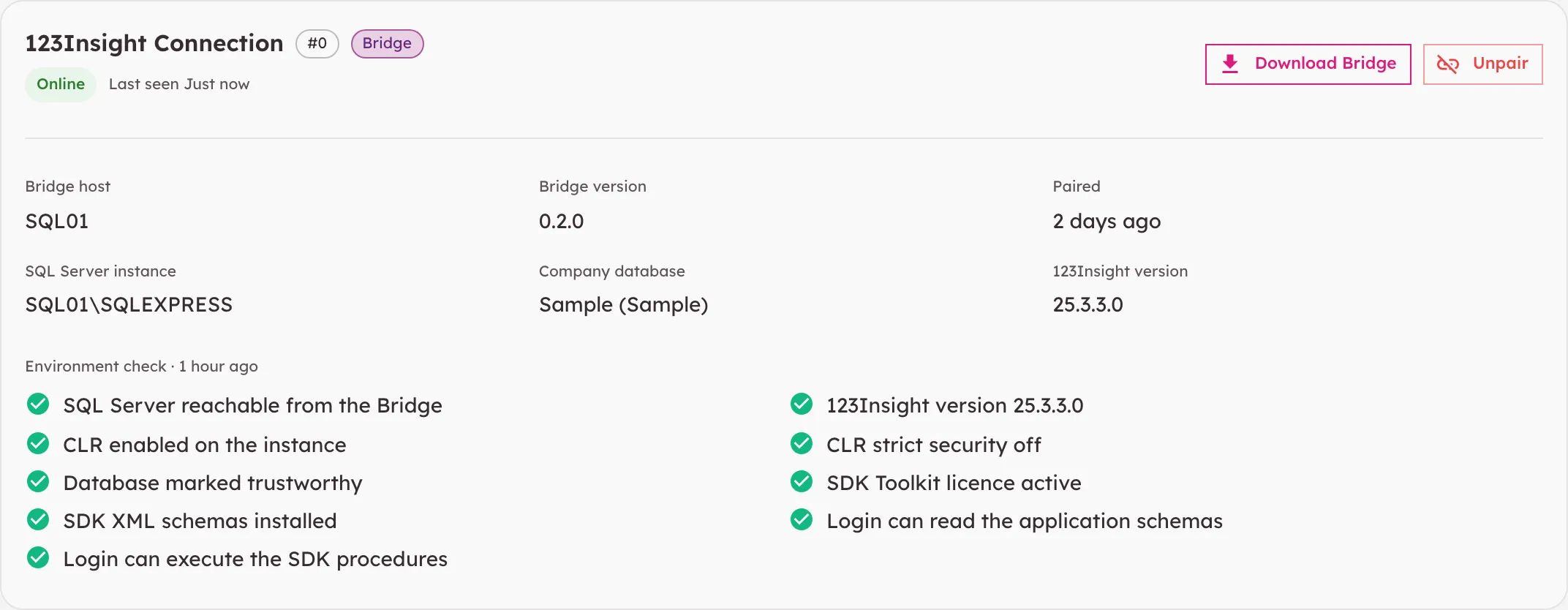
Navigate to Auth in the left sidebar. The Credentials tab shows your HubSpot connection and a card for each Bridge:
- whether the Bridge is Online and when it was last seen;
- the server it runs on, its version, when it was paired, the SQL Server instance, the company database (Sample or Production), and the 123Insight version;
- the latest environment check, check by check.
-
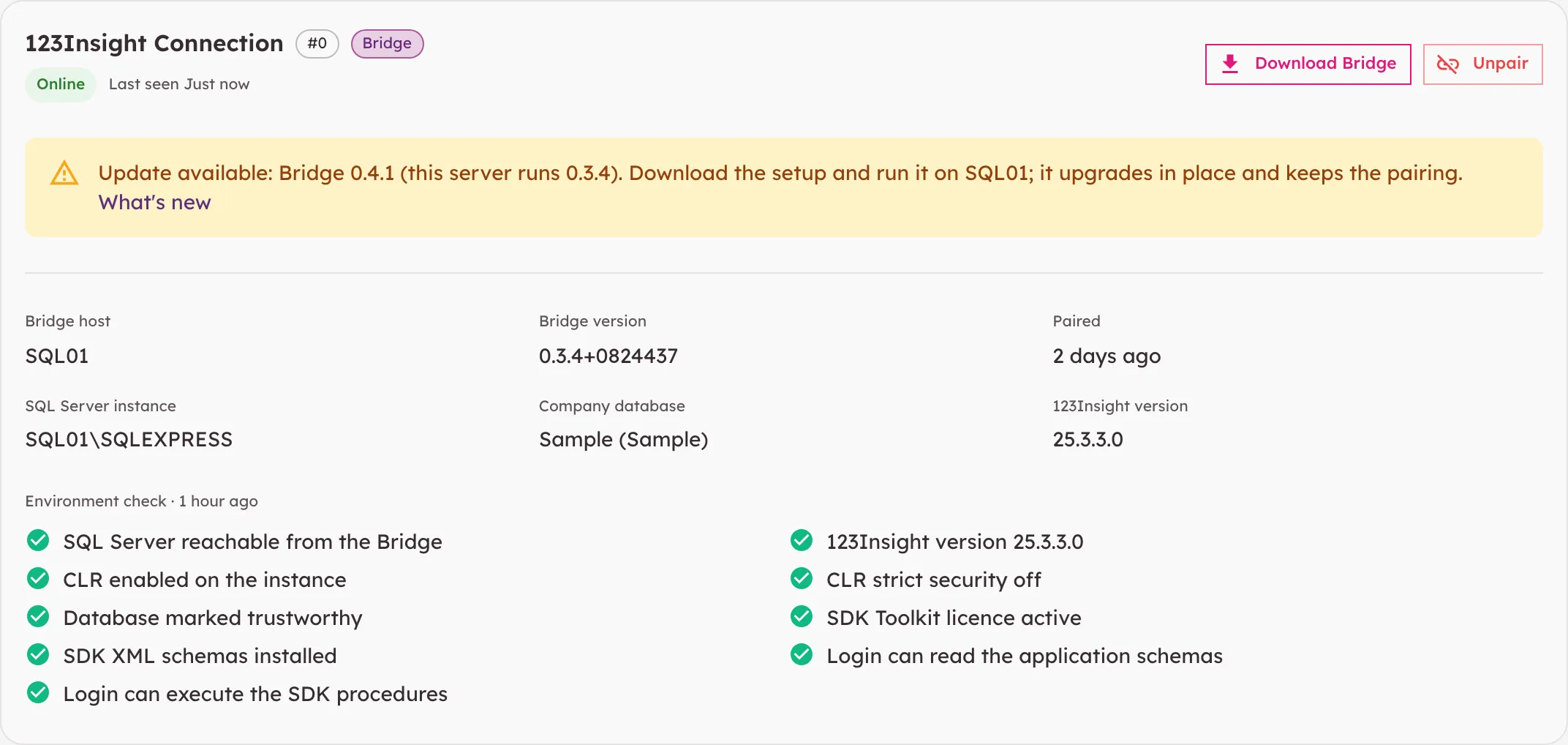
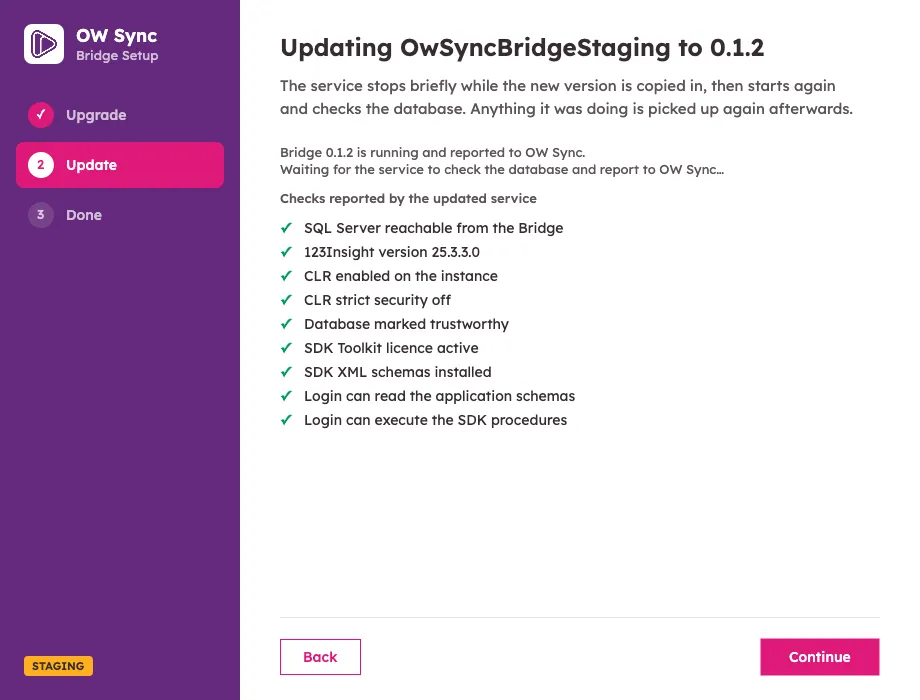
Updating the Bridge: When a new Bridge version is available, the card says so and links to what’s new. Download the setup from the card and run it on the same server: it recognises the installed Bridge, upgrades it in place and keeps the pairing, so there’s no new code to enter.
-
Moving to another server: Click Unpair on the card, then run the setup on the new server with a fresh pairing code.
-
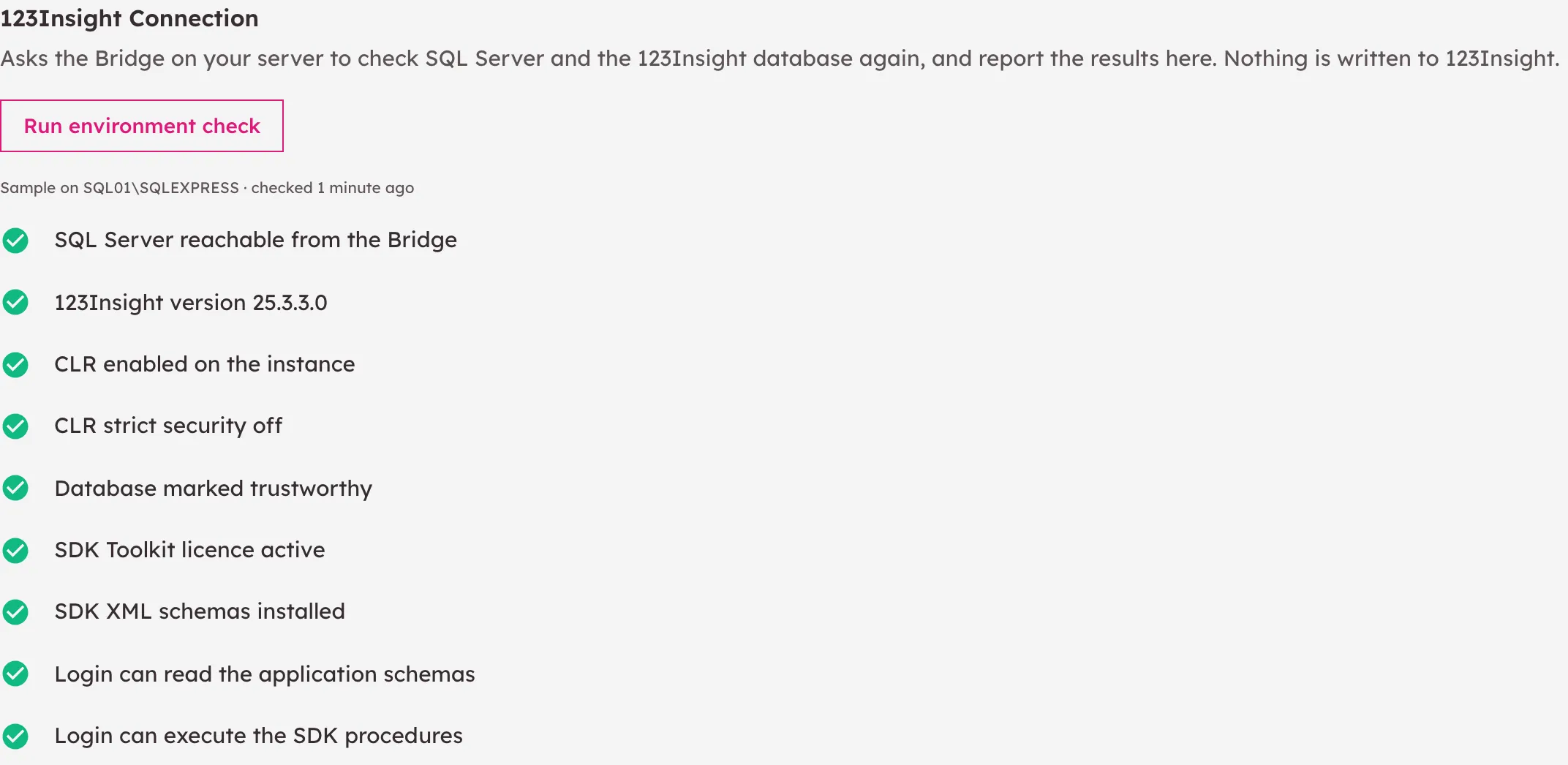
The Test Sync tab sends the environment check to the Bridge on demand, through the same queue that carries syncs and workflow actions, and shows each result as the Bridge reports it, so you can confirm the whole path from OW Sync to your database works.
10. Create Records in 123Insight from HubSpot (Optional)
Section titled “10. Create Records in 123Insight from HubSpot (Optional)”OW Sync ships HubSpot workflow actions that write back to 123Insight, so you can create and update records directly from HubSpot without re-keying data. Add any of these actions to a workflow (for example, when a deal reaches a closed-won stage). Every action starts with a 123Insight Connection dropdown to choose which connection it writes to. Record IDs are the 123Insight IDs that OW Sync stores on each synced HubSpot record.
| Action | Plan | What you need to provide |
|---|---|---|
| Create Customer (Simple) | All plans | Company name, country, address line 1, customer code, currency, tax code, and nominal code |
| Create Customer (Detailed) | All plans | As Create Customer (Simple); optionally contact details, payment terms, customer status, discounts, and a first contact in the same step |
| Update Customer | All plans | 123Insight company ID |
| Create Contact | All plans | 123Insight company ID, mailing address ID, and last name |
| Update Contact | All plans | 123Insight contact ID |
| Create Product (Part) | Advanced actions | Part number, description, method type, unit of measure, default location, minimum stock level, and minimum batch size |
| Update Product (Part) | Advanced actions | Part number |
| Create Quotation | Advanced actions | 123Insight company ID. The deal’s line items become the quotation lines; each needs a SKU that matches a 123Insight part number, a quantity, and a price |
| Create Sales Order | Advanced actions | Customer code, delivery address ID, and customer status; optionally the enrolled record’s line items as order lines |
| Update Sales Order | Advanced actions | Sales order number |
| Add Line Item | Advanced actions | Sales order number, part number, quantity, unit price, despatch date, and customer required date |
| Edit Line Item | Advanced actions | Sales order number and line number |
- How writes run: HubSpot hands each action to OW Sync, the Bridge picks it up and runs it on your server through 123Insight’s own SDK procedures, in a single transaction, and the workflow continues once the Bridge reports back — usually within seconds. If the Bridge is offline, actions wait until it’s back. An action that fails leaves nothing half-written in 123Insight, and an action HubSpot retries is never applied twice.
- Lookups: Fields that point at a 123Insight list — countries, currencies, tax codes, nominal codes, customer statuses, payment terms, and titles — are dropdowns populated from your company.
- Updates change only what you fill in: Blank fields are left as they are in 123Insight. Updating a sales order or its lines is possible only while the order is a Firm Order, as in 123Insight itself.
- Document numbers: Leave Quotation Number blank and OW Sync assigns one starting with
HS; leave Sales Order Number blank and 123Insight numbers the order in its usual sequence. - Outputs: Create actions return the new record’s 123Insight IDs (for example the company ID, customer code, and address ID, or the quotation and sales order numbers) for use in later workflow steps.
Action outcomes, including any 123Insight validation errors, appear in the workflow’s action logs and on OW Sync’s Sync Logs page.
ℹ️ Plan tiers: Customer and contact actions are available on all plans. The part, quotation, sales order, and line-item actions require a plan that includes advanced workflow actions.
ℹ️ Quotations can’t be amended: 123Insight has no way to change a quotation through its SDK, so there is no Update Quotation action. Make changes in 123Insight; they sync back to the HubSpot deal.
ℹ️ Not available for 123Insight: Payments, and converting a customer into a supplier, are made in 123Insight itself.
11. Review Sync History
Section titled “11. Review Sync History”-
Navigate to Sync Logs in the left sidebar to view synchronization history: data syncs from 123Insight, associations, and the writes your workflow actions make.
-
The first sync will begin shortly after you enable a sync pair. Subsequent syncs run automatically on the schedule you set, as long as the Bridge is online.
12. Verify in HubSpot
Section titled “12. Verify in HubSpot”- Once a sync completes, navigate to the matching HubSpot objects — Companies, Contacts, Products, Deals, Orders, and Invoices — to verify the data.
- You should see 123Insight records with all mapped fields populated, contacts linked to their customer or supplier, quotations and orders linked to their company and contact, and line items attached to their parent quotation, order, or invoice.
This guide will be updated with new functionality, object types, and synchronization options as they become available. Visit the OW Sync website for the latest features, or contact the Cogent Connective team with any questions not covered here.