

How To Install & Use OW Sync - Unleashed Connector
Here’s everything you need to know to install and use OW Sync - Unleashed Connector.
1. Before You Start — Get Your Unleashed API Credentials
Section titled “1. Before You Start — Get Your Unleashed API Credentials”Unleashed is a cloud platform, so there is no server to configure, no address to enter, and no OW Sync Bridge or on-premises agent to install — every customer connects to the same API endpoint. You generate the credentials yourself, with no request to Unleashed and no app to register.
-
Open the API access page: Sign in to Unleashed and go to Integration › Unleashed API Access.
-
Copy your API ID and API Key: The page shows an API ID (a GUID, such as
1a2b3c4d-…) and an API Key. Copy both in full — you’ll paste them into OW Sync in section 4. -
One pair per company: Credentials are issued per Unleashed company. If your login has access to several companies, each has its own API ID and API Key, and each one you connect becomes a separate OW Sync connection. Switch to the company you want in Unleashed before you copy its pair.
⚠️ Treat the API Key like a password: Unleashed’s API has no permission scopes and no read-only key — an API ID and API Key give full access to the company. Share them only with the person completing the setup, and generate a new key in Unleashed if you think it has been exposed.
ℹ️ API call allowance: Unleashed gives each company a monthly allowance of API calls that depends on your Unleashed plan — a trial company has 125,000 calls a month. You can see your allowance and how much of it you’ve used on the same Integration › Unleashed API Access page. OW Sync’s calls count against it (your own use of Unleashed in the browser, and Unleashed’s own built-in integrations, don’t), so choose how often each sync runs with your allowance in mind (see section 7).
2. Initial Installation
Section titled “2. Initial Installation”-
Install OW Sync - Unleashed Connector from the official installation flow. On the OW Sync landing page, open the “Search for your ERP…” dropdown and select Unleashed, then click Log In with HubSpot.
-
Select your HubSpot account from the list. We recommend testing on a sandbox or test account before deploying to production.
-
Review the permissions required by the app — these include access to your companies, contacts, deals, orders, invoices, products, line items, lists, and their property schemas — then click Connect app to proceed.
3. Account Setup
Section titled “3. Account Setup”After connecting, you’ll be guided through a setup wizard.
-
Select Billing Contact: Choose a portal user who will be the primary billing contact for this account from the dropdown, then click Continue.
-
Company Information: Enter your billing company details including domain, legal company name, street address, city, state/county, postal code, and country. This information will be used for invoicing. Click Continue to proceed.
4. Connect Unleashed
Section titled “4. Connect Unleashed”-
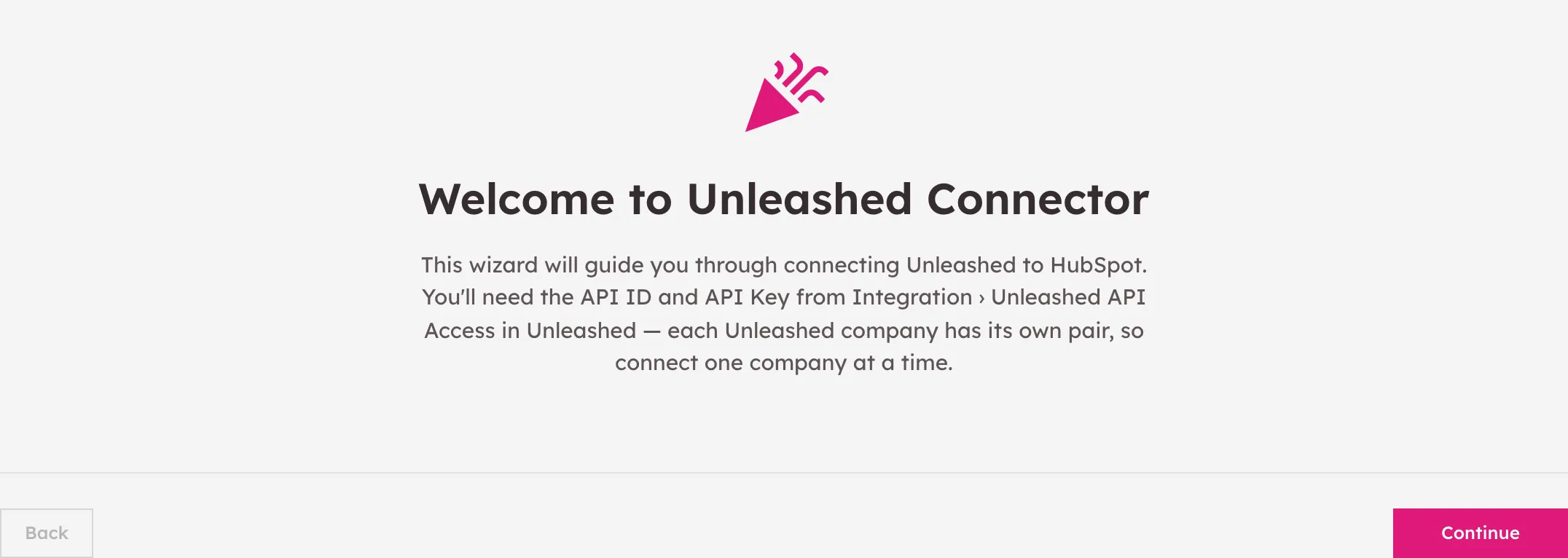
Welcome to Unleashed Connector: The onboarding wizard explains that you’ll need the API ID and API Key from Integration › Unleashed API Access in Unleashed, and that each Unleashed company has its own pair, so you connect one company at a time. Click Continue.
-
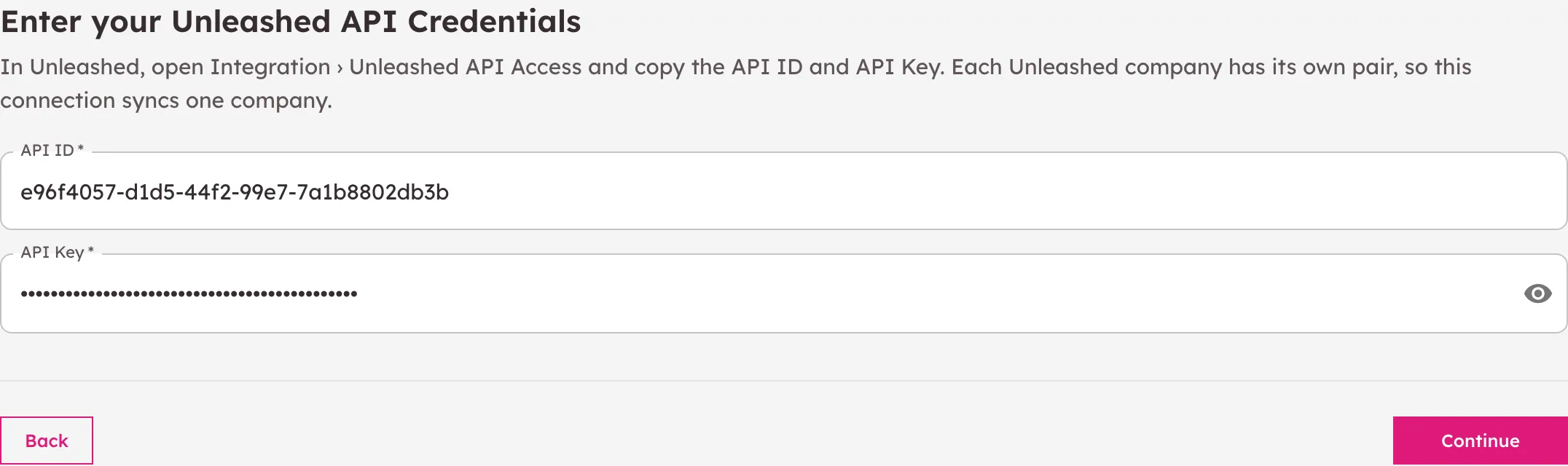
Credentials: Enter the API ID and API Key from section 1. Your credentials are encrypted and stored securely.
-
Test Connection: OW Sync reads your company details from Unleashed and names the company it reached — for example Connected to Unleashed company Acme Wholesale Ltd — so you can be sure you’ve connected the right one before any data moves. A company that is already connected to this HubSpot account can’t be connected a second time.
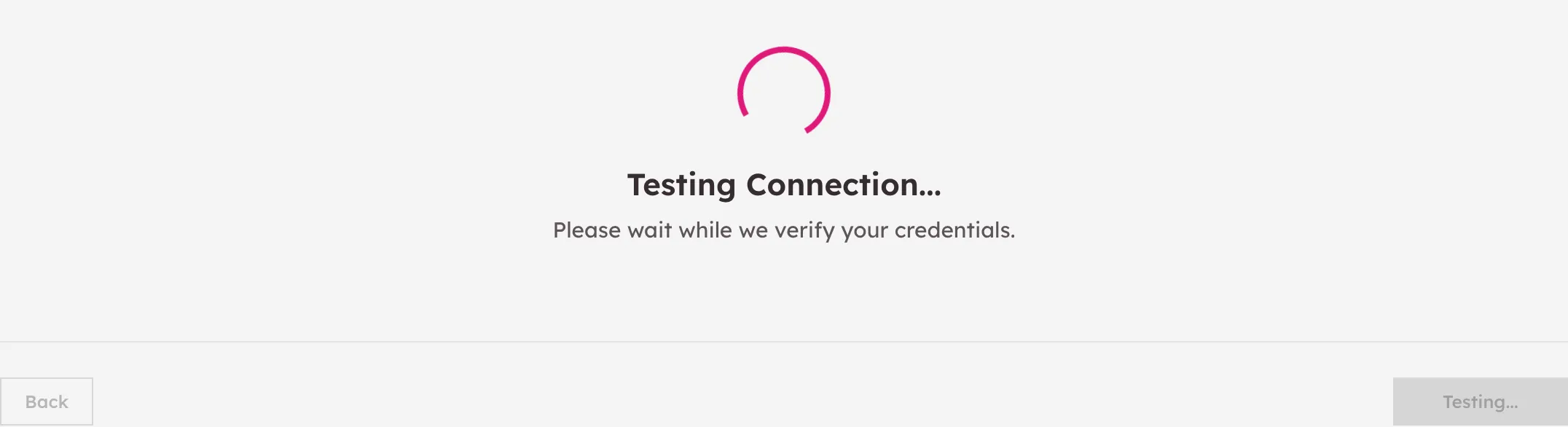
ℹ️ Connection failed? “Unleashed rejected the API ID and API Key — check both were copied in full from Integration › Unleashed API Access” means one of the two is wrong or incomplete: copy them again from Unleashed. “The API ID must be a GUID” means the value in the API ID field isn’t the API ID — check the two fields weren’t swapped.
5. HubSpot Setup — Create Properties
Section titled “5. HubSpot Setup — Create Properties”Unleashed data is mapped to the matching native HubSpot objects (companies, contacts, products, deals, orders, invoices, and line items). There’s no target object to choose and no HubSpot custom object to create.
-
Click Create Properties to proceed. OW Sync creates the sync pairs, field mappings, and associations, and the properties each sync pair needs: the Unleashed record IDs that link each HubSpot record to Unleashed, the IDs that link records to each other, and key Unleashed fields such as the customer code, product code, and order number. Fields that land in HubSpot’s own properties — names, addresses, SKUs, prices, amounts — need nothing created.
-
OW Sync also reads your company’s lookup lists — currencies, customer types, payment terms, sell price tiers, salespeople, sales order groups, delivery methods, warehouses, tax codes, product groups, product brands, units of measure, custom order statuses, and shipping companies — to back the matching dropdown properties.

6. Finish Onboarding
Section titled “6. Finish Onboarding”-
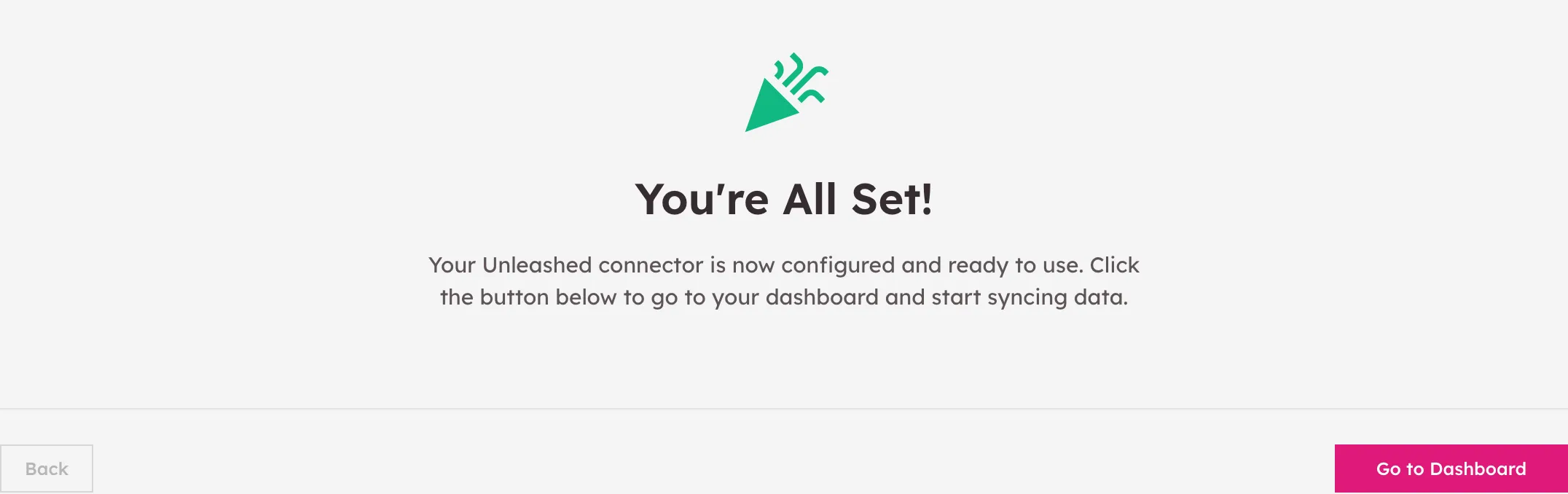
Once properties are created, you’ll see the All set! screen confirming your Unleashed connector is configured and ready to use. Click Go to Dashboard to enter the app.
7. Review Your Sync Configuration
Section titled “7. Review Your Sync Configuration”-
After onboarding, you’ll land in the OW Sync app. If you connected more than one Unleashed company, use the connection selector in the header to choose which one you’re configuring. The Mapping page’s Objects tab shows your pre-configured sync pairs, which bring Unleashed data into the matching native HubSpot objects:
- Unleashed Customers → HubSpot Companies
- Unleashed Customer Contacts → HubSpot Contacts
- Unleashed Suppliers → HubSpot Companies — suppliers carry their own Unleashed supplier ID, so they never merge with customers
- Unleashed Products → HubSpot Products
- Unleashed Stock On Hand → HubSpot Products — stock availability is written onto the product’s properties, since HubSpot has no stock object
- Unleashed Sales Orders → HubSpot Orders
- Unleashed Sales Order Lines → HubSpot Line Items
- Unleashed Sales Quotes → HubSpot Deals
- Unleashed Sales Quote Lines → HubSpot Line Items
- Unleashed Invoices → HubSpot Invoices
- Unleashed Invoice Lines → HubSpot Line Items
- Unleashed Sales Shipments → HubSpot Orders — despatch and fulfilment status is written onto the order’s properties, since HubSpot has no shipment object
-
Use the Activated toggle on each row to turn a sync pair on or off, and the Interval dropdown to set how often it runs (sync frequency depends on your plan). You can review the field mappings for any pair by expanding its row before enabling it.
ℹ️ Sales Quotes need a pipeline stage: Before activating the Sales Quotes pair, expand its row and choose the HubSpot deal pipeline and stage that synced quotes should land in.
-
Map Unleashed fields to HubSpot properties as needed. Fields are pre-mapped by default, and you can change the target property or disable individual field syncs from the expanded row.
ℹ️ Choose intervals with your API allowance in mind: Every sync run makes API calls against your Unleashed plan’s monthly allowance (see section 1). Frequent intervals on many pairs use more of it, so start with the pairs you need most at a moderate interval, check your usage on Unleashed’s Integration › Unleashed API Access page after a few days, and adjust. If your allowance can’t support the cadence you want, the options are a higher Unleashed plan or less frequent syncs.
ℹ️ Large first syncs: The first run of each pair imports the full history, so it can take a while on larger companies and uses more of your API allowance than later runs. Subsequent runs read only the records changed since the last sync. We recommend activating Customers first, then enabling the remaining pairs once it completes.
ℹ️ Customer email, phone, and website: Unleashed keeps a customer’s email address, phone numbers, and website on the customer’s default contact, not on the customer itself. In HubSpot they arrive with the contact, through the Customer Contacts pair.
ℹ️ Read-only objects: Unleashed’s API doesn’t allow quotes, invoices, or suppliers to be created or changed, so these pairs only ever bring data into HubSpot. A won HubSpot deal reaches Unleashed as a new sales order (see section 9), and Unleashed raises the invoice itself when the order is completed.
ℹ️ Records removed in Unleashed: Sales order lines and customer contacts deleted in Unleashed are picked up on a later sync run rather than straight away. Quotes keep their HubSpot deals as history.
-
The Enumerations tab shows the lookup lists read from your Unleashed company that back the dropdown properties (see section 5). Each Unleashed company has its own lists. The Exclusions tab lets you filter out records you don’t want in HubSpot.
8. Review Associations
Section titled “8. Review Associations”- The Associations tab lists the relationships OW Sync builds automatically in HubSpot once the relevant sync pairs are running:
- Customer Contacts → Customers — each contact linked to their company
- Sales Orders → Customers, Sales Quotes → Customers, Invoices → Customers
- Sales Orders → Customer Contacts — where the order names a delivery contact in Unleashed
- Invoices → Sales Orders — each invoice linked to the order it was raised from
- Sales Order Lines → Sales Orders, Sales Quote Lines → Sales Quotes, Invoice Lines → Invoices
- Use the Activated toggle to enable the associations you want.
9. Create Records in Unleashed from HubSpot (Optional)
Section titled “9. Create Records in Unleashed from HubSpot (Optional)”OW Sync ships HubSpot workflow actions that write back to Unleashed, so you can create and update records directly from HubSpot without re-keying data. Add any of these actions to a workflow (for example, when a deal reaches a closed-won stage). Every action starts with an Unleashed Connection dropdown to choose which Unleashed company it writes to. Records are identified by their Unleashed Guid — which OW Sync stores on each synced HubSpot record — or by their code or number, as noted below.
| Action | Plan | What you need to provide |
|---|---|---|
| Create Customer | All plans | Customer name; optionally a customer code, email, phone, and postal address |
| Create Customer (Detailed) | All plans | As Create Customer; optionally the default contact’s name, terms, pricing, warehouse, salesperson, credit settings, bank details, and a delivery address in the same step |
| Update Customer | All plans | Customer (Guid or exact customer code) |
| Create Contact | All plans | Customer (Guid or exact customer code), plus a first name, last name, or email |
| Update Contact | All plans | Customer (Guid or exact customer code) and the contact’s Guid |
| Create Product | Advanced actions | Product code and description |
| Update Product | Advanced actions | Product Guid, or the product code to find it by |
| Create Sales Order | Advanced actions | Customer (code or Guid) — the order lines come from the deal’s line items |
| Update Sales Order | Advanced actions | Sales order (Guid or order number, such as SO-00000123) |
| Add Line Item | Advanced actions | Sales order, product code, and quantity |
| Edit Line Item | Advanced actions | Sales order and line (Guid or line number) |
| Complete Sales Order | Advanced actions | Sales order |
- Creating a sales order from a deal: Create Sales Order runs in deal-based workflows. Each of the deal’s line items becomes an order line, using the line item’s SKU as the Unleashed product code, or its product’s SKU when the line item has none. A line item without an SKU stops the action, unless you tick Skip Line Items Without an SKU. A line without a price takes the customer’s own price in Unleashed, then the product’s default sell price. New orders are Parked unless you choose Placed.
- Defaults on new orders: Left blank, the warehouse defaults to the customer’s warehouse, then your default warehouse; the currency to the customer’s; and the tax to the customer’s tax code, a zero rate for non-taxable customers, then your default sales tax. One tax rate applies to the whole order. Unleashed assigns the next order number unless you enter one.
- Totals: Unleashed doesn’t calculate order totals itself — OW Sync works out line, tax, and order totals to Unleashed’s rounding rules, so they match what Unleashed would show.
- No duplicate orders: OW Sync writes the HubSpot deal ID to the order’s Source ID in Unleashed and looks for it before creating. If a workflow retries or runs again for the same deal, the action returns the existing order instead of creating a second one.
- Changing an order: Update Sales Order changes the order header only — status, dates, references, group, delivery method, salesperson, and delivery details. Use Add Line Item and Edit Line Item to change the lines; Unleashed recalculates the order totals after each one. Edit Line Item keeps the line’s existing discount unless you enter a new one.
- Completing an order: Complete Sales Order completes the order in Unleashed, which creates its invoice and shipment and moves the stock, and returns the invoice number. Running it again on an order that’s already completed succeeds without repeating anything. A completed order can no longer be edited.
- Customer details on the default contact: The email, phone, mobile, and website on the customer actions are saved on the customer’s default contact, as Unleashed stores them. To change them on an existing customer, use Update Contact; Update Customer changes the customer’s own fields.
- Addresses: A customer has one postal address — the postal fields update it. Delivery addresses are matched by name: Delivery Address Name picks the one to set, and defaults to “Delivery”, or the only delivery address there is. If a customer has several delivery addresses, name the one you want.
- Codes are permanent: Customer and product codes can’t be changed once a record is created. Leave the customer code blank and Unleashed assigns the next
CUST-number; a product always needs its code. - Lookups: Fields that point at an Unleashed list — currencies, customer types, payment terms, sell price tiers, sales order groups, delivery methods, warehouses, units of measure, product groups, and brands — take the value exactly as it’s named in Unleashed. Salespeople can be entered by full name or email on the customer actions.
- Blank fields: Optional fields left blank are not sent, and the update actions only change the fields you fill in.
Action outcomes, including any Unleashed validation errors, appear in the workflow’s action logs and on OW Sync’s Sync Logs page.
ℹ️ Plan tiers: Customer and contact actions are available on all plans. The product, sales order, and line-item actions require a plan that includes advanced workflow actions.
ℹ️ Every write uses your API allowance: Each action makes a few calls to Unleashed — to look up the record, write it, and read it back — and those count against your monthly API allowance like sync runs do.
10. Manage Connections & Test Sync
Section titled “10. Manage Connections & Test Sync”-
Navigate to Auth in the left sidebar. The Credentials tab shows your HubSpot connection status and each Unleashed connection with the company it’s bound to and its status. Unleashed signs every request with your API ID and API Key, so there is no token to expire and nothing to re-authorise; OW Sync re-tests each connection periodically and shows the reason if it stops working — for example after the API Key is regenerated in Unleashed. Click Add Connection to connect another Unleashed company, or edit a connection to enter new credentials.
-
The Test Sync tab runs live checks against the selected company — customers, customer contacts, suppliers, products, stock on hand, sales orders, sales quotes, invoices, and sales shipments. Each reports how many records it can read.
11. Review Sync History
Section titled “11. Review Sync History”-
Navigate to Sync Logs in the left sidebar to view synchronization history: data syncs from Unleashed, associations, and the write-backs your workflow actions make.
-
The first sync will begin shortly after you enable a sync pair. Subsequent syncs run automatically on the schedule you set.
12. Verify in HubSpot
Section titled “12. Verify in HubSpot”- Once a sync completes, navigate to the matching HubSpot objects — Companies, Contacts, Products, Deals, Orders, and Invoices — to verify the data.
- You should see Unleashed records with all mapped fields populated, stock availability on products, despatch status on orders, contacts linked to their customer, quotes, orders, and invoices linked to their customer’s company, invoices linked to the order they came from, and line items attached to their parent quote, order, or invoice.
This guide will be updated with new functionality, object types, and synchronization options as they become available. Visit the OW Sync website for the latest features, or contact the Cogent Connective team with any questions not covered here.